

How to Integrate Creative Suite into Your Platform or Website
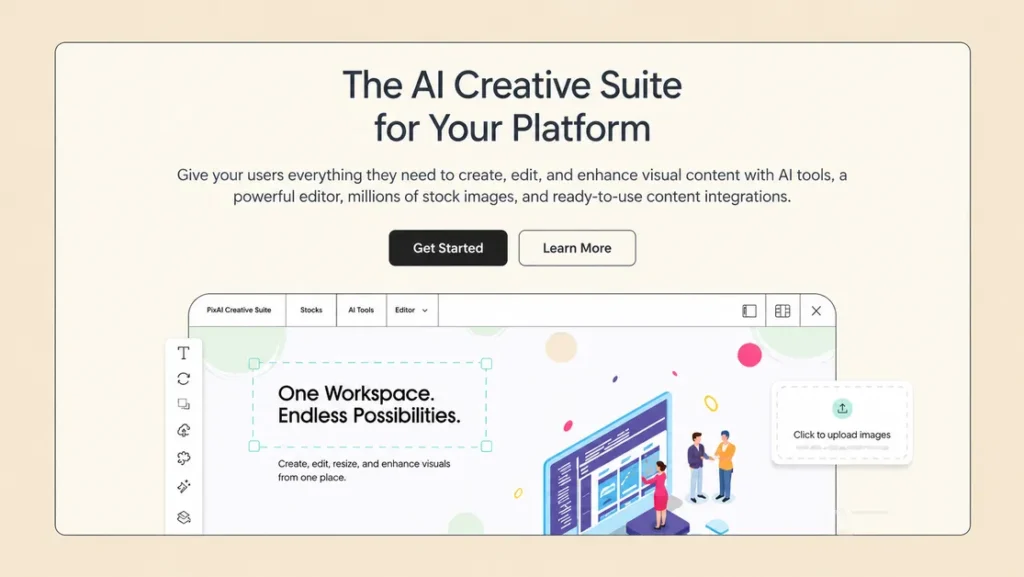
Adding creative tools to your website or application can help users create and edit visual content without switching between different platforms. If you have a SaaS product, website builder, CMS, or e-commerce platform, providing access to stock media, AI image generation, and image editing can make the user experience more convenient.
Creative Suite makes this possible through a JavaScript embeddable that opens directly over your existing website or application. You can give users access to stock photos and videos, AI-powered tools, and an image editor within your own product. The integration doesn’t require a separate page for the creative panel or redirect users to another website. This guide explains how Creative Suite works, what users can do with it, and how you can customize it for your platform.
Key Takeaway:
- Easy Integration: Add Creative Suite to your website or app using a JavaScript script without installing packages or setting up extra server infrastructure.
- Stock Media and AI Tools: Let users search stock photos and videos, generate images with AI, and create visuals for different projects.
- Built-In Image Editor: Allow users to crop, resize, rotate, add text, apply effects, and remove image backgrounds within your platform.
- Customizable Interface: Configure themes, panel placement, default views, media libraries, and other settings to match your platform’s requirements.
- Simplified User Workflow: Let users import finished assets directly into your product without downloading and uploading files manually or switching between different tools.
Table of Contents
What Is a Creative Suite?
Creative Suite is a tool that adds creative features to your website or app. It combines stock media, AI image creation, and image editing. It works through a JavaScript script that you add to your website. Once configured, the panel can open over your existing pages, allowing users to access creative tools without leaving your product.
There is no separate page needed for the panel, and users do not need to go to a different editing website to complete their creative tasks. This helps businesses provide a creative experience in one place while keeping users within their current workflows.
What Can Users Do with Creative Suite?
Creative Suite combines three main features: stock media, AI tools, and an white-label image editor.
1. Search Stock Photos and Videos
Users can search for stock photos and videos directly within the creative panel. You can also filter search results by options such as color, orientation, image type, and other available criteria.
Before using an asset, users can preview it and view information about its author and license. This makes it easier to find the right visual content without leaving your platform.
2. Generate Images with AI
AI Image Generation lets users create new visuals from written descriptions using artificial intelligence. Instead of just using existing images, users can describe the exact image they want, including what it will look like, what else is in the picture, and what colors it will be. The AI image generator uses these instructions to create images that match what the user wants.
This feature is useful for designers, marketers, content creators, and businesses that need visuals for different projects. Users can images for various purposes, such as website banners, social media posts, blog articles, product promotions, presentations, and marketing campaigns. It allows for more creativity, helps users explore different visual ideas, and makes it easier to create images for a specific project without having to search a lot through existing stock libraries.
3. Edit Images Within Your Platform
The built-in image editor lets you prepare images before importing them into your product.
Editing options include:
- Crop and resize
- Flip and rotate
- Adjust filters and apply effects
- Add text
- Add shapes and layers
- Remove image backgrounds
These features help users make common image adjustments in the same way.
4. Import Finished Assets Directly
Once users find an image in the stock library, generate a new visual with AI, or edit an existing image, they can import the finished asset directly into your product. This allows users to move their creative work from the embedded creative suite into the main platform without interrupting their workflow. Whether they are creating website banners, social media graphics, blog visuals, or marketing materials, they can select the asset they need and bring it into their project.
This direct import process removes unnecessary steps, such as downloading files to a local device and uploading them again manually. Users don’t need to open a new browser tab or switch between different tools to get the job done. By keeping the whole process in one place, businesses can give users a better experience, reduce repetitive tasks, and help users finish their creative projects more efficiently.
How to Add Creative Suite to Your Website
White-Label Creative Suite is designed as a JavaScript embeddable. First, add a script tag to your website. Next, configure the panel. Finally, make it available to users.
Step 1: Add the JavaScript Script
Add the Creative Suite script to your website using the instructions provided for your platform.
You don’t need to install a package, run a build step, or set up extra infrastructure on your server.
Step 2: Configure the Creative Panel
Before the panel loads, your website can configure its appearance and behavior.
You can select the theme, control the visibility of the theme switch and floating toggle button, and determine where the panel opens on the screen.
These options help you adapt the creative experience to your website’s design and user workflow.
Step 3: Choose the Default View
It has three tabs: Stocks, AI Tools, and Editor. You can choose which area to open first, depending on what your users need most.
For example, a platform focused on stock media may open the Stocks tab first, while a product focused on image editing may open directly in the Editor. You can also set the panel to open in the editor with a specific image.
Step 4: Set Media and Library Options
These settings let you choose which media libraries are enabled in the creative suite and decide whether the panel displays images or videos. You can choose the libraries that work best with your platform and control the type of media users can access through the panel.
You can also change the message that appears when no library is available. This helps you communicate with users when there is no content available and adjust the panel based on the type of creative content your platform supports.
Step 5: Configure Access and Usage
These settings let you set daily usage limits for your site and decide how the sign-in process works. You can set these options based on what your platform needs and decide how users will access the creative suite.
You can control how the panel is used by setting usage limits and choosing how signing in works. This allows you to adjust the panel’s usage according to your platform’s needs. Before integrating Creative Suite into your platform, you can explore the Creative Suite Widget Showcase to see how the creative panel works and how it can fit into your website or application.
What Can You Customize in a Creative Suite?
Creative Suite doesn’t have a fixed interface. You can set up a few things on your website before the panel loads.
| Setting | What It Controls |
| Theme | Select light, dark, or a custom color set |
| Theme switch | Show or hide the light and dark mode toggle |
| Toggle button | Show the floating button or open the panel from your own interface |
| Panel placement | Choose where the panel opens on the screen |
| Default view | Open Stocks, AI Tools, or Editor first |
| Media type | Display images only or videos only |
| Logo style | Choose the logo version that suits the background |
| Empty-state text | Customize the message shown when no library is available |
| Editor launch | Open directly in the editor with a specific image |
You can also select enabled libraries, set daily usage limits, and configure how signing in works. These customization options allow businesses to adapt Creative tools to their existing product experience.
Where Can You Use a Creative Suite?
It can be useful for different types of digital platforms.
- SaaS applications: Give users access to image editing and creative tools within your software.
- Website builders: Allow users to find stock media and prepare images while building their websites.
- E-commerce platforms: Help users search for visuals, generate images, and edit assets for product pages and promotions.
- Content management systems: Provide creative tools within content creation and publishing workflows.
- Marketing platforms: Help users prepare visual content for campaigns without switching between separate applications.
How you do it depends on how your website is set up and how you want your team to work together.
Why Add Creative Suite to Your Platform?
Integrating white-label Creative Suite can make it easier for your users to create visual content.
- One connected workflow: Users can search, generate, and edit visuals within your product.
- Less manual work: Users can import finished assets directly instead of downloading and uploading them again.
- A customized experience: Themes, panel placement, and other settings can be configured for your platform.
- Flexible entry points: The panel can open through its floating toggle or your website’s own interface.
- Configurable access: Enabled libraries, daily limits, and sign-in behavior can be adjusted for your site.
These tools help businesses add creative features to their products without having to build every tool from scratch.
Wrapping Up:
Adding Creative Suite to your platform lets users easily search stock photos and videos, generate images using AI, remove backgrounds, and edit visuals without leaving your website or application.
Its JavaScript embeddable approach allows the panel to open over existing pages, while customization options let you control its appearance, placement, default view, enabled libraries, and access settings.
If you use a SaaS application, website builder, CMS, or e-commerce platform, it can help you bring creative workflows closer to where your users already work.
Check out Pixey AI Creative Suite to see how you can add stock media, AI-powered image creation, and image editing to your platform.
Frequently Asked Questions
1. What is a Creative Suite?
A: Creative Suite is a JavaScript embeddable that brings stock media, AI image generation, and image editing into an existing website or application.
2. Do I need to install a package to add Creative Suite?
A: No. Creative Suite uses a JavaScript script tag. It does not require a package installation, build step, or additional server setup.
3. Can I customize the appearance of Creative Suite?
A: Yes. You can configure its theme, theme switch, toggle button, panel placement, logo style, default view, and empty-state text.
4. Can users edit images before importing them?
A: Yes. Users can crop, resize, flip, rotate, adjust filters, apply effects, add text, add shapes and layers, and remove backgrounds before importing finished assets into your product.
5. Can I control which creative tools and libraries are available?
A: Yes. You can choose which libraries are enabled, set the default view, select the media type, configure daily limits, and decide how signing in works.